
I sought the LORD, and He answered me and rescued me from all my fears. Those who look to Him are radiant with joy; their faces will never be ashamed.
Psalm 34:4-5
by
Elizabeth
 Oct 22, 2026
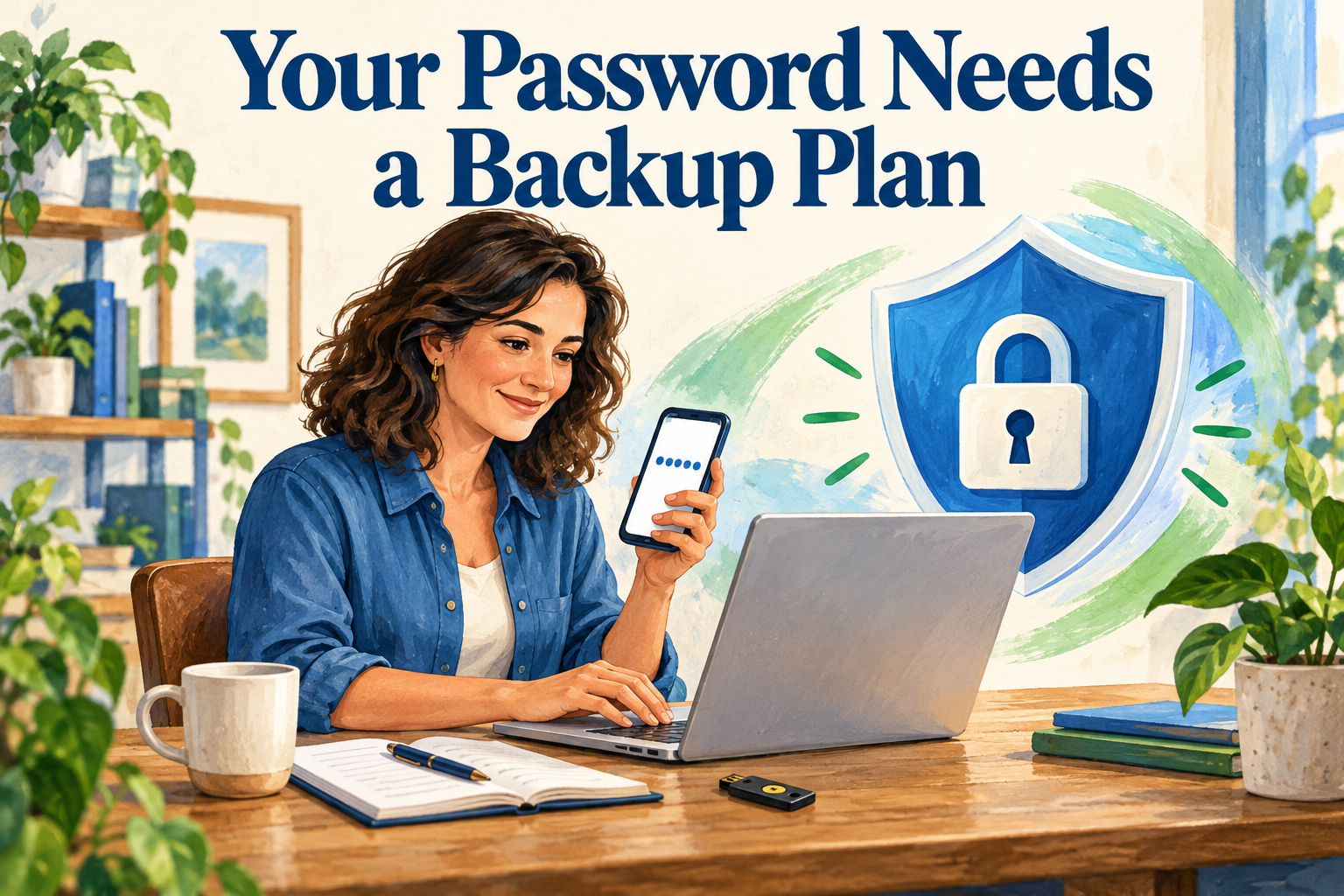
Quick Answer: Use a different password for every account. Turn on multifactor authentication (MFA), starting with email, banking, and payroll. Then save your recovery codes somewhere other than your phone. That last step is what saves you when the phone dies.
Most of us already have too many passwords. Then a website wants a code, an app approval, or one more step before it lets you in.
I’ll be honest: having to use MFA for everything is extremely annoying. It really is the safest way to protect your accounts, though, so I use it anyway.
This post is about making your logins harder to misuse, and making sure you can still get into them when your phone goes missing.
If you reuse a password, anyone who gets it from one account can try it on the others. One breach at a random shopping site can turn into a problem with your business email.
The FTC recommends long, unique passwords and multifactor authentication. It also says not to share passwords by phone, text, or email. [1]
Your email deserves extra attention, since that’s where the password reset messages for everything else land. Protect it, and you’re protecting every account connected to it.
A reputable password manager lets your team use a different password for every service without memorizing any of them. Just protect the password manager itself with a strong master password and MFA.
And those long, random passwords that are outrageously exasperating to type? They have a place, and a password manager is what makes them livable. I personally use RoboForm. Bitwarden and 1Password are two others that consistently get strong ratings for security.
One more rule: never let a website remember your password. When a site offers, say no, and let your password manager handle it.
MFA asks for something besides your password before letting you in. Usually that’s a code from an authenticator app, a tap on your phone, or a physical security key.
Think of it as a second lock. A stolen password alone may not get someone through the door.
Start with business email, then banking, payroll, accounting software, and wherever you store files. Give each employee their own login where you can, so you can shut off access cleanly when someone leaves.
Some MFA methods hold up better against fake login pages. CISA recommends phishing-resistant MFA, like security keys, wherever it’s supported. [2]
Ask your IT provider which options your services offer, including passkeys or security keys, and how to set them up correctly. If those aren’t available, an authenticator app is still a solid upgrade over text-message codes.
Two rules that never change: don’t approve a login prompt you didn’t start, and don’t read a code to someone who says they’re from “support.” MFA only helps while you’re the one in control of it.
A secure login turns into a business problem when the only person who can approve it is on vacation, or the only device that can approve it is at the bottom of a lake.
Use the service’s own recovery options. Store recovery codes somewhere safe and separate from the device they’d help you replace. Ask whether you can register a backup security key too.
We see what happens when people skip this step every single week. We run payroll for our clients, and their employees use our portal to get their pay stubs and W-2s. MFA is turned on, and when employees set it up, the portal prompts them to save their emergency codes just in case something happens, like getting a new phone that needs to be tied to the account.
Every week, we still get emails from employees who didn’t save that information and need a password reset. Save the codes. It takes less than a minute.
Give people access through their own accounts instead of a shared spreadsheet of everyone’s passwords. If your payroll person is out sick on a Thursday, who else can sign in? Settle that now.
Use saved bookmarks or the provider’s official app to reach important accounts, and skip the “sign in here” link in an unexpected email.
A copied login page can look identical to the real one. One handy tell: if your password manager won’t fill in your password on a page where it normally would, stop and look closely at the web address.
Timely access to your records matters, especially on payroll day. A few minutes of setup now keeps a dead phone from turning into a missed payroll deadline.
Next in our series: I clicked the link. Now what?
Should I let websites remember my passwords?
No. A password manager keeps everything behind one strong master password and MFA, and it gives a business more control over who can see what and how to remove access when someone leaves.
What’s a passkey?
A passkey lets you sign in with your fingerprint, face, or device PIN instead of typing a password. Because it only works on the real website, a fake login page can’t steal it.
Should employees use their personal phones for MFA?
Plenty of small businesses do. Just make sure the business has its own backup method so access doesn’t walk out the door with one employee’s phone.
How often should we change our passwords?
Only when there’s a reason to. Current federal guidance from NIST says routine forced changes aren’t necessary. Change a password when you think it may have been exposed. [3]
Quick Answer: Use a different password for every account. Turn on multifactor authentication (MFA), starting with email, banking, and payroll. Then save your recovery codes…Read More
Quick Answer: AI tools can imitate a voice. Give your team one rule: any request for money, gift cards, passwords, or private information gets confirmed…Read More
Quick Answer: Before you pay a bill, especially one with new bank details, confirm two things by calling a phone number you already have on…Read More
Comments